Lab · 60 min
Lab 7: Connect any app
Connect Muse to services it has no built-in connector for. Start with ones that need no login, then let Muse find and set up the apps you use.
- Goal
- Three working connectors: web search, currency rates, and one app you use every day.
- You learn
- MCP servers, public APIs, letting Muse find the setup steps, the Secure Credentials Store
- Needs
- Nothing for Parts A and B. For Part C, an account with an app you use, such as Todoist.
- Payoff
- Any service with a public API or MCP server, usable from Muse the day you need it
How custom connectors work
Meta's Help Center says you can "ask Muse to create a Custom Connector. Muse will guide you through the process, which can involve retrieving API information from the service." Muse writes the connector on its own computer and stores any keys in its Secure Credentials Store. Meta's security blog says this works for services that "have their own APIs or CLIs."
Every connector in this lab uses one prompt pattern. Keep it handy:
Build a custom connector to [service]. Its [MCP server URL / API docs] is [link]. I want to be able to [what you want done] from any future conversation.
The pattern comes from Parallel, whose connector was built this way in Muse "in under a minute."
Part A: No login. Web search over MCP
MCP is a standard way for AI agents to plug into a service. Parallel runs a public MCP server with two tools, web search and page fetch. It needs no account, and Parallel has published it working in Muse.
Build a custom connector to the Parallel Search MCP server at https://search.parallel.ai/mcp. It is a remote MCP server over streamable HTTP with two tools, web_search and web_fetch. No login needed. Test both tools and save it so I can use it in any conversation.
Try it:
Use Parallel to find three reviews of [product] from the last month and summarize what people complain about.
Part B: No login. Currency rates from an API
Frankfurter publishes daily exchange rates from the European Central Bank. No account, no key.
Build a custom connector to the Frankfurter currency API. The docs are at https://frankfurter.dev and the base URL is https://api.frankfurter.dev/v1. No key needed. Test it by converting 100 US dollars to euros, then save it so I can ask for exchange rates anytime.
Try it:
What's $250 in euros and Indian rupees today? And what was it 30 days ago?
- Both connectors answer in a new chat.
- The rates match a quick web search for today's rate.
Part C: Let Muse find it
Name the app and let Muse find the docs and setup steps. This example uses Todoist, a to-do app with a free plan. Swap in any app you use.
I use Todoist. Find its official API or MCP server yourself. Tell me the simplest way to connect it: no login first, then a personal API token, then sign-in. Give me the exact taps on my phone to get what you need. Then build the connector, test it with one real action, and save it.
When you need my key, open the secure credentials prompt. Don't ask me to paste it in chat.
For Todoist, Muse should send you to Settings, Integrations, Developer in a web browser to copy an API token. The Todoist phone app does not show it, so use Safari or Chrome.
Then use it:
What's on my Todoist today, and what's overdue? Add "Call dentist tomorrow 9am".
Every weekday at 7:00 am, send me my top three Todoist tasks for the day, with overdue ones first.
- Muse listed your real tasks.
- The dentist task shows in the Todoist app with tomorrow's date.
- The daily task is in Your assistant›Upcoming.
Part D: Find what else to connect
Look at the apps and services that show up in my email and calendar, and the ones I've mentioned to you. List the ones you can't reach yet. For each, tell me whether it has a public API or MCP server and how hard it is to connect: no login, a key, or sign-in. Recommend the top three.
Pick one and run the Part C prompt with its name.
Apps that need sign-in
Some services connect by sign-in (OAuth): you log in on the service's page and approve Muse. Asked about a custom connector, Muse itself explains both routes, and the limits:
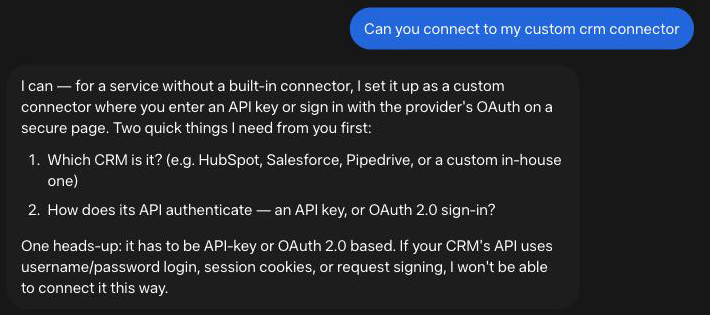
Services that use a username and password login, session cookies or request signing cannot be connected this way. If a sign-in page loops or fails, ask Muse for a personal API token route.
Optional worked example: Glow Theory, a skincare app built by the EquationX team. Its MCP server accepts Muse's sign-in callback (tested 22 September 2026). You need a Glow Theory account created with Sign in with Google.
Build a custom connector to Glow Theory. Its MCP server URL is https://glow-mcp-1062427114932.us-central1.run.app/mcp. It uses OAuth sign-in with Google. Walk me through connecting it, then tell me my current skincare routine.
Test saving it as a skill
Parallel reports that Muse saved its connector as a skill. reported Meta's Help Center says skills are built by Meta. Test it and record what happens. This one uses your calendar and the Todoist connector from Part C.
Save a skill called "plan-my-day". When I say "plan my day", check my calendar and my Todoist tasks for today, and give me a time-blocked plan. Show me the skill file you wrote.
Open a new chat, type "plan my day", and note whether it ran. If it did not, the daily task from Part C gives you the same result on a schedule.
- Key pasted into chat by mistake: revoke it in the app's settings and make a new one. Name keys "Muse" so you can find them later.
- Sign-in page loops: stop and ask Muse for a token route.
- Docs behind a login: give Muse a public docs or MCP link, or setup turns into a long browser session.
- A server on your own laptop or home network: Muse's computer is in Meta's cloud and cannot reach it.
- Meta does not review custom connectors you build. It reviews only services listed in its directory. Connect services you trust.
For builders: make your app one line to connect
Some companies publish a short setup file for Muse on their site. Dead Simple Email hosts one at deadsimple.email/connectors/muse.md, and users type one line: "Set up Dead Simple Email using the brief at deadsimple.email/connectors/muse.md." Muse reads the URL, the sign-in method and the tools from that file.
To be listed in Muse's connector directory, submit at muse.ai/platform. Meta reviews each submission for function, security and legal requirements. The form asks for a hosted MCP endpoint, authentication method, privacy policy, terms, a 512 by 512 PNG icon, and example prompts. Glow Theory was submitted in September 2026.