Money · Free guides
Find every subscription you forgot about
Muse reads a year of receipts and hands you a spreadsheet of every recurring charge, with the annual total at the bottom. In our run it also drafted a $43.02 refund request for an app we never used.
- Runs in
- Muse + Gmail
- Time
- 45 min, about 15 of it Muse reading your email
Before you start
- Connect Gmail. That is all you need to start. A download of your card or bank transactions (most banks have a Download or Export button) helps in step 2.
- Set both defaults in Settings›Permissions to Always ask. Cancelling and sending cannot be undone.
- Muse reads and lists on its own. It asks before each cancellation and shows you any refund request before it goes out.
1. List every recurring charge
Muse goes through a year of receipts. This took about 15 minutes in our run.
Go through my Gmail receipts and billing emails from the last 12 months. List every recurring charge: service, amount, billing cycle, date of last receipt, and whether a free trial turned into a paid plan.
If the task finishes in Your assistant›Activity but no list shows up in chat, ask:
Is the recurring charges list ready? Show me what you found so far.
2. Check your card for the rest
Email misses anything that bills without a receipt. Tap + in the message box, attach your card export, and send:
This is a CSV export of my card for the last 3 months. Find every recurring charge in it. Flag duplicates, price increases, and trials that turned paid. Then tell me which ones were missing from the Gmail list.
3. Put it in a spreadsheet
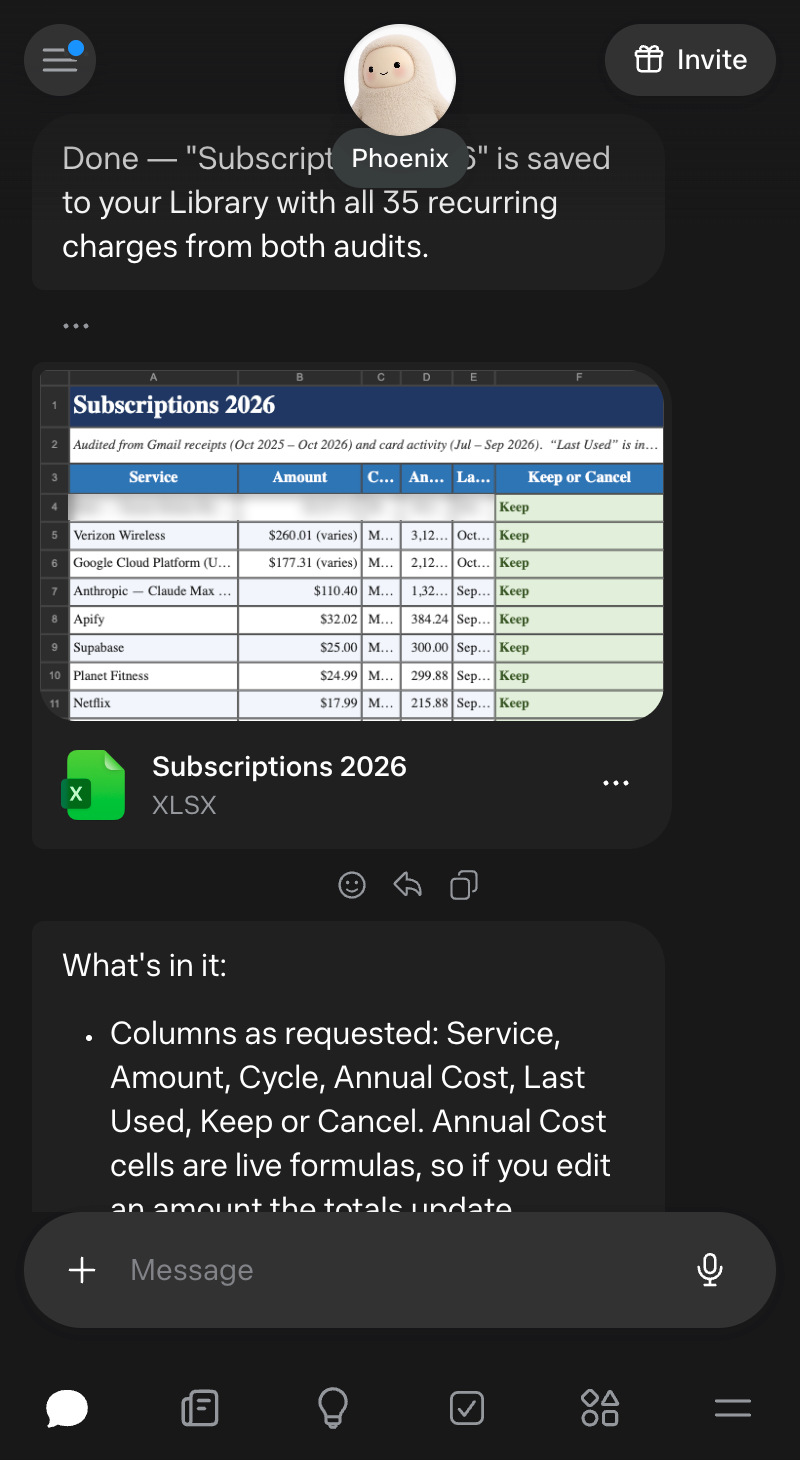
Make a spreadsheet called "Subscriptions 2026" and save it to my Library. Columns: service, amount, cycle, annual cost, last used (your best guess from email), Keep or Cancel. Skip rent, utilities and phone bills. Suggest Keep or Cancel for each, and I'll decide. Add the annual total at the bottom.
Keep the line about rent and utilities. Without it, Muse added rent and the phone bill and the total jumped to five figures.
4. Mark and cancel
Open the sheet in your Library and decide. Then:
Mark [service] and [service] as Cancel. Leave your other suggestions as they are.
Cancel the ones I marked Cancel, using each provider's own cancel page. Ask me before each one. If a provider blocks you or needs a code, stop and tell me which one.
Apple subscriptions need your Apple ID sign-in and often a code. They are quicker on your iPhone: Settings›your name›Subscriptions.
5. Ask for a refund
For [service], which I did not use this year, draft a refund request to their support. Mention the dates of the charges. Tell me where to send it, and show me the draft before you send anything.
A refund does not cancel the plan, so cancel it as well.
6. Check every month
On the 1st of every month, check my email for new recurring charges and add them to the Subscriptions 2026 spreadsheet. Message me only if you find one.
When we ran it
Muse found charges like Google One, AppleCare+, iCloud+ and two Apple trials that had turned paid. The end of its answer was the useful part: one app billing through PayPal and Apple at once, and Netflix and Prime missing because they bill to a card with no email receipt. The spreadsheet arrived in our Library as an XLSX file with formulas for the annual cost. The refund draft for Apple News+ listed three monthly charges of $14.34, $43.02 in total.
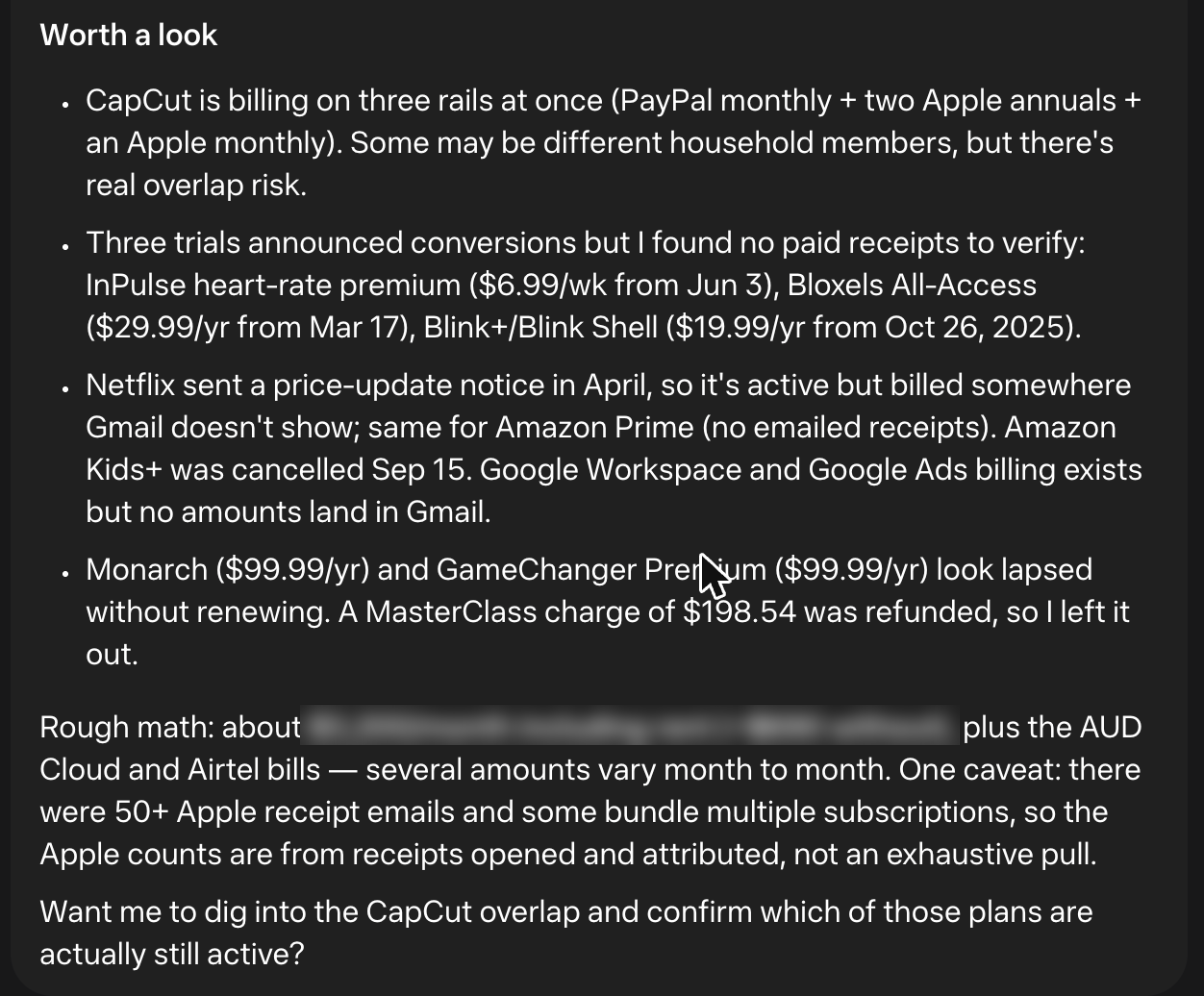
- With 50 or more Apple receipts, Muse told us it had not read them all. Check your iPhone subscriptions, or the Play Store on Android, by hand.
- A card export shows the charge without the trial before it. Check large one-off charges yourself.
- Delete account numbers and other columns you do not want to share before you attach the card file.
Make it yours
- No card export handy? Connect your bank through Plaid (the Finances connector) instead. Start with one account.
- "Last used" is a guess from billing dates. Email cannot show whether you open an app, so trust your own memory there.
Full walkthrough
Every step, screenshot and fix from our run is in Put Muse to Work.
Lab 2: Find and cancel forgotten subscriptions →