AI basics · Free guides
Build an AI agent in Claude that drafts your customer email replies
Your agent reads new customer emails each morning, checks your price list and orders, and drafts a reply to each one. You read the drafts and send them yourself. It takes about an hour in the Claude desktop app and you won't write any code. You need a paid Claude plan. The rules file and a bakery starter kit are below if you want to try it before using your own business.
- Runs in
- Claude Code in the Claude desktop app
- Time
- 1 hour
What you need
- A Mac or Windows laptop. The screenshots show a Mac, and Windows works the same way unless a step says otherwise.
- A paid Claude plan, Pro or higher. The part of the app you'll use isn't on the free plan (Claude Code: desktop quickstart).
- About an hour the first time. Steps 1 to 4 happen away from Claude, so you can do those on a lunch break.
- Gmail, but only for steps 15 and 16. Before that you copy and paste.
Try it first with the starter kit
The starter kit is the bakery from the carousel. It has a price list, FAQs, three good replies, an orders sheet, the rules file and an inbox folder with four customer emails. You can swap in your own business later.
- Click the download link below. The file lands in your Downloads folder.
- Open the zip file. On a Mac, open Finder, click Downloads and double-click
bloom-bakery-starter-kit.zip. On Windows, open File Explorer, click Downloads, right-click the zip, click Extract All, then Extract. - A new folder called
bloom-bakery-starter-kitappears. Open it. - Drag the
my-agentfolder onto your Desktop. - Drag
CLAUDE.mdinto thatmy-agentfolder on your Desktop. - Skip to Step 5. In Step 9 you can skip the typing, because your rules file is already in place.
Bloom Bakery and its customers are made up.
Part 1: get your files ready
Step 1. Pick one job
Start with one job. Pick something you do every week where a first draft saves you time. This is your use case: the one job your agent is built to do.
On paper or in a note, write four lines:
- Job: what it does.
- In: what arrives, like a customer email.
- Back: what you want from it, like a draft reply.
- Checks: who reads it before it goes out. That's you.
Job: reply to cake enquiries. In: "How much for a cake for 20?" Back: a draft reply. Checks: me, before it goes out.
Good first jobs are ones where a mistake costs little, because you read every draft anyway, like replies to enquiries or booking questions. Leave anything that moves money or sends without you for later.
Step 2. Gather what it needs to know
Your agent only knows what you give it. With no files it will guess, and guesses sound confident. What you give it is called context: the information the AI answers from.
- Price list. Every product or service with its price.
- FAQs. The questions customers ask most, with your answers: notice needed, delivery, payment, what you don't do.
- Three replies you liked. Open your email's Sent folder, find three replies you'd happily send again, and copy them into one document. Delete customer names, phone numbers and addresses.
- Save each one as a PDF.
- Google Docs: File, Download, PDF Document
- Word: File, Save As, then choose PDF as the format
- Pages on a Mac: File, Export To, PDF
- Name them
price-list.pdf,faqs.pdfandgood-replies.pdf. Your rules in Step 9 use these names, so keep them the same.
Bloom Bakery's FAQs say they need 3 days' notice for any cake, deliver within 10 km for $10, take card or cash at pickup, and make one gluten-free cake: chocolate, serves 10.
Step 3. Add your spreadsheet and let it do the maths
Your agent can read your orders sheet too. It's a data source: a file your agent looks things up in. Put a formula in it for any number you'll ask about, because AI can miscount a long list. Our own agent once counted 367 orders when the real number was 368.
- Open your orders sheet in Google Sheets or Excel. One row per order, with a heading row at the top.
- Add a Month column if you don't have one (Nov, Dec and so on).
- Under your last order, leave one empty row. In the next row, type November orders in the first cell.
- In the cell next to it, type this formula and press Enter. It counts how many cells in column D say Nov. Change
Dto the letter of your Month column.
=COUNTIF(D:D, "Nov")
| A Date | B Customer | C Cake | D Month | E Price | |
|---|---|---|---|---|---|
| 2 | 2026-11-02 | B. Cruz | Vanilla 10 | Nov | 40 |
| 3 | 2026-11-03 | C. Wong | Chocolate 10 | Nov | 45 |
| … | … | … | … | … | … |
| 11 | November orders | 7 |
- Save a copy as CSV. A CSV is a plain spreadsheet file that any app can open, and Claude reads it easily.
- Google Sheets: File, Download, Comma-separated values (.csv)
- Excel: File, Save As, then choose CSV UTF-8 as the format
- Name it
orders.csv.
The CSV saves the answer, not the formula. It holds "7" and won't update by itself. When new orders come in, download the CSV again and replace the old one.
Step 4. Make a folder for your agent
One folder holds everything your agent can read. It can't see anything outside it.
- Mac: right-click an empty spot on your Desktop, click New Folder, type
my-agentand press Return. Windows: right-click the Desktop, click New, then Folder, typemy-agentand press Enter. - Drag your four files into it:
price-list.pdf,faqs.pdf,good-replies.pdfandorders.csv. - Open the folder and check all four sit directly inside it, not in another folder within it.
Only put files here that you're happy for the AI to read. No passwords, bank details or customer card numbers.
Part 2: set up Claude
Step 5. Install Claude and sign in
You need the Claude desktop app, because it can work with a folder on your laptop.
- Go to claude.com/download and click the download button for your computer.
- Mac: open the downloaded file and drag the Claude icon onto the Applications folder, where Mac apps live. Then open Finder, click Applications and double-click Claude. Windows: open the downloaded file and follow the installer.
- Sign in with the email you use for Claude.
- If it asks you to upgrade, pick Pro or higher.
You should see the Claude window with a sidebar on the left.
Step 6. Switch to Code and start a session
This is the part of Claude that works with your folder. Code is just the name, and you won't write any. A session is one conversation.
- At the top left, click the </> button. That switches the app to Code.
- In the sidebar, click + New. On a Mac the shortcut is Cmd + N.
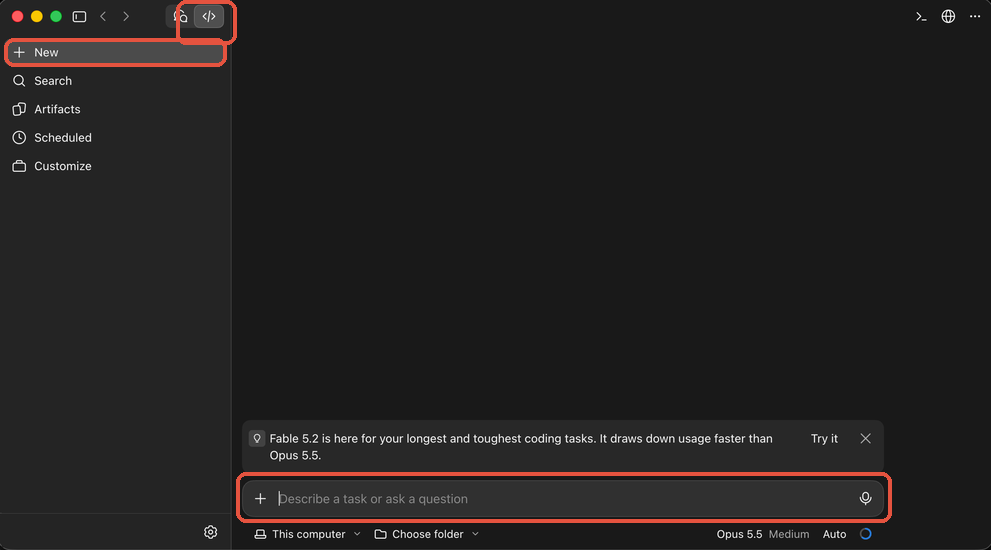
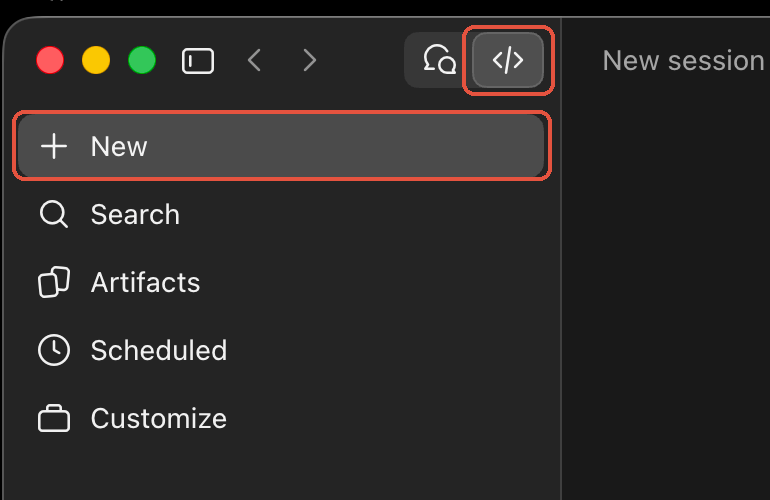
You should see a big empty box at the bottom of the window. That's where you type.
Step 7. Open your folder
Point the session at my-agent so it can read your files. This computer means the agent runs on your own laptop, and the folder you pick is all it can see.
- Look at the row just under the box. Check it says This computer. If it says something else, click it and pick This computer.
- Click Choose folder.
- At the bottom of the menu, click Open folder…
- In the window that opens, click Desktop, click my-agent once, then click Open.
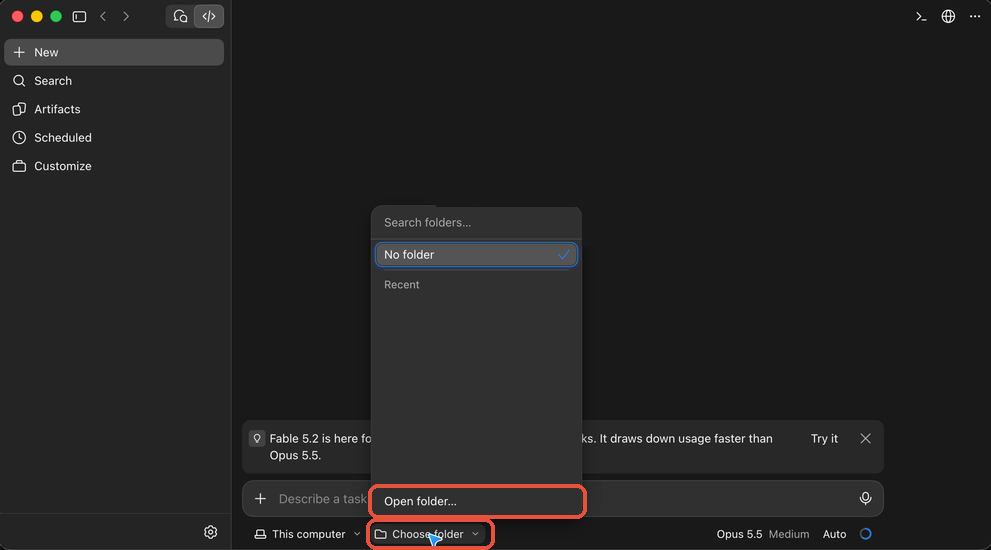

You should see my-agent on the button where it said Choose folder.
Step 8. Make it ask first
With this on, it shows you every change it wants to make and waits for your yes. Permissions are how much it can do without asking you.
- At the right end of the same row under the box, click the word Auto.
- Click Manual.
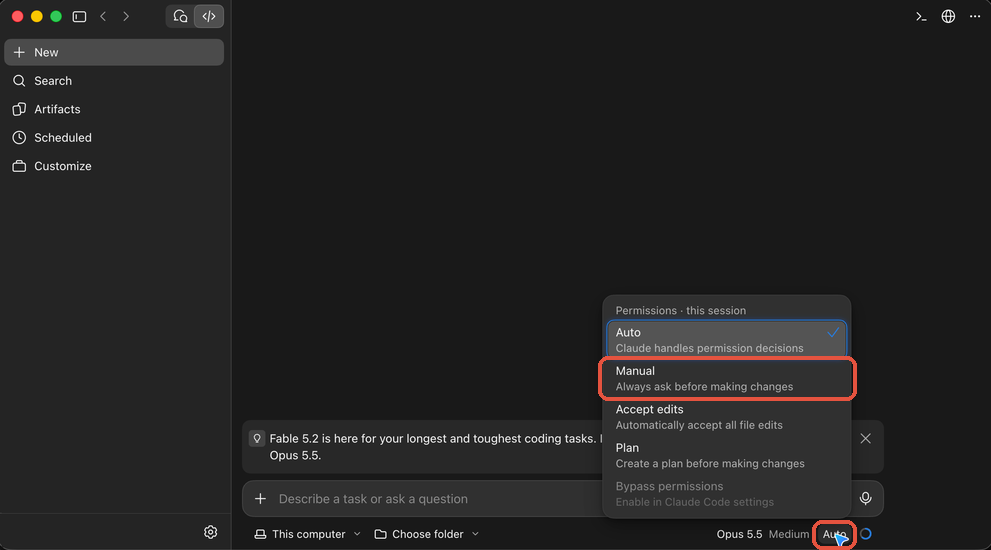
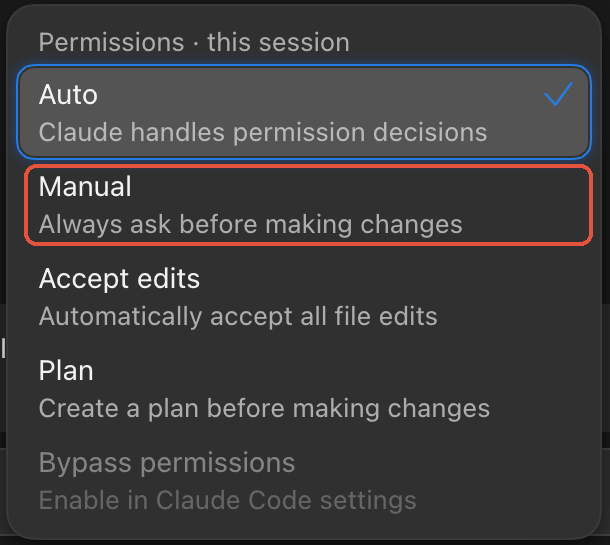
The row now says Manual. Keep it on Manual while you're learning, so you see each step before it happens.
Part 3: teach it and test it
Step 9. Give it rules
You write your rules once, in a file called CLAUDE.md. It's your agent's rule book, a text file in your folder that Claude reads at the start of every session (Claude Code: memory).
- Click in the box and paste the text below. If you type it yourself, press Shift + Enter for each new line.
- Change Bloom Bakery and The Bloom team to your business.
- Press Enter.
- Claude shows you the file it wants to create and asks if it can go ahead. Read it, then approve.
Using the starter kit? You already dragged CLAUDE.md into my-agent, so skip the steps above and go to Step 10.
Make a file called CLAUDE.md with these rules: You reply to customer emails for Bloom Bakery. Answer from faqs.pdf, and write like the replies in good-replies.pdf. Keep replies under 100 words, friendly, signed The Bloom team. Only quote prices from price-list.pdf. Never make one up. For numbers, use the totals row in orders.csv. Never count by yourself. If you're not sure about something, write CHECK at the top and say what you need.
Open your my-agent folder. You should see a new file, CLAUDE.md, next to your other four. Prefer to skip the typing? Download CLAUDE.md, rename it to CLAUDE.md, change the business name in TextEdit or Notepad, and drag it into my-agent.
| Rule | What it stops |
|---|---|
| Answer from faqs.pdf… | Without this line it tends to skip your FAQs and answer from general knowledge. |
| Under 100 words, signed… | Long, formal replies that don't sound like you. |
| Only quote prices from… | Made-up prices. This is the one that matters most. |
| Use the totals row… | Miscounting. It reads your formula instead. |
| Write CHECK… | Confident guesses. You get a flag instead. |
Step 10. Try it on a real email
Give it a real customer email and see what it writes. Whatever you type in the box is your prompt.
- Open a customer email and copy the text. Using the starter kit? Open
inbox/1-jess.txtand copy the message. - Click in the box and type the line below.
- Paste the email after it and press Enter.
Draft a reply to this email:
Hi! How much for a chocolate cake for 20 people? Can I pick it up Saturday?
It may ask to read your files first. Approve, since that's how it gets your prices.
Step 11. Check the reply
Read every reply before it goes out. This is human in the loop: a person checks before anything is sent.
- Every price matches your price list.
- It used your FAQ rules: notice, delivery, what you don't do.
- Anything it couldn't answer is marked CHECK.
- It sounds like you.
- It's under 100 words.
Hi Jess, thanks so much for thinking of us! A chocolate cake for 20 is $85. We need 3 days' notice for any cake, so this Saturday (the 21st) is a bit too soon, sorry. Next Saturday, the 28th, would be perfect. Want us to have it ready for pickup then? You can pay by card or cash when you collect.
The Bloom team
$85 came from the price list. The 3-day rule and "card or cash" came from the FAQs. Nobody asked it to check the notice period or the date. If everything's right, copy it into your email and send it yourself.
Step 12. Ask it about your orders
Your spreadsheet is now something you can ask questions. Answering from your own files instead of guessing is called grounding.
How many cake orders did we get in November?
7, according to the totals row in orders.csv.
Other questions to try: "What did B. Cruz order?" or "What's our most expensive cake?" For any new count you'll ask often, add a formula row first, like Step 3.
Step 13. Teach it once
When it gets something wrong or doesn't know, fix the rule book so it stays fixed. Anything in CLAUDE.md, it knows next session.
We're open Saturdays 9 to 1. Add that to CLAUDE.md.
- It shows you the change with the new line added. Approve it.
- To check it stuck, click + New, make sure the button still says
my-agent, and ask "What are your Saturday hours?"
Step 14. Test it with three kinds of email
Try an easy one, a tricky one and an upset one before you trust it. Test questions where you already know the right answer are called evals.
Draft a reply to this email: Do you make gluten-free cakes? Need one for 10.
Hi Ravi, yes we do! Our gluten-free cake is chocolate and serves 10, so it's just right. It's $55, and we need 3 days' notice. When would you like it?
The Bloom team
Draft a reply to this email: Can you do a cake shaped like a car for my son?
CHECK: Shaped/custom cakes aren't in the FAQs or price list. Need to know if we do car-shaped cakes, and the price.
Hi Omar, what a fun idea for your son! Let me check with our bakers about a car-shaped cake and get back to you with a price. How many people will it need to serve, and when's the party? We just need 3 days' notice.
The Bloom team
Draft a reply to this email: My order was late yesterday and the party had already started. Not happy.
CHECK: No order from Lena in orders.csv. Need to confirm her order, and OK to offer her next cake free (like our past reply to Tom).
Hi Lena, sorry your order was late. That's not the experience we want for you, especially on a party day. Your next cake is on us.
The Bloom team
In the last two, it didn't invent a price for the car cake, and it looked for Lena's order before offering her anything. The free cake idea came from good-replies.pdf, and it still asks you first.
If a reply is wrong, add one rule to CLAUDE.md like Step 13 and run all three again. Keep your test emails in a note so you can rerun them after every change.
Part 4: make it an agent
Step 15. Connect Gmail
Once it can read your inbox, you can stop copying and pasting. A connector is a link from Claude to another app.
- Click the + to the left of the box, then Connectors.
- Find Gmail and click Connect.
- Sign in to Google in the window that opens, and allow access.
- Add a safety rule. Paste this and approve the change:
Add this rule to CLAUDE.md: Never send an email. Only save drafts in Gmail for me to review.
If Connectors isn't under the +, open Claude's Settings and look for Connectors there. Menus move between app updates.
Step 16. The morning job
Now it does the whole job on its own and you review the drafts. That's what makes it an agent: you give it a goal and it picks its own steps, like which emails to read, which file to check and when to write CHECK.
No Gmail yet? Practise with an inbox folder. The starter kit has an inbox folder inside my-agent with four emails, one per file. Using your own business? Make a folder called inbox inside my-agent and save a few customer emails in it as text files. Then paste this into a session:
Read every email in the inbox folder. Draft a reply to each one and save them all in drafts/today.md. Put anything marked CHECK at the top of your summary. Don't send anything.
Approve when it asks to create the drafts folder and file. Then open my-agent, then drafts, then today.md to read them.
4 drafts. Jess and Ravi: ready to send. CHECK Omar: car-shaped cakes aren't in the price list. CHECK Lena: no order from her in orders.csv.
Nobody told it to look up Lena's order. It checked orders.csv on its own and found nothing under her name.
With Gmail, run it once by hand first. Paste this into a session and watch what it does. Fix anything with a new rule before you schedule it.
Every morning, read my new customer emails in Gmail, check prices and orders, draft a reply to each one, and list anything marked CHECK. Don't send anything.
Then schedule it.
- In the sidebar, click Scheduled.
- Click New task.
- Paste the same job.
- Pick the
my-agentfolder. - Set it to Daily and pick a time, like 7am.
- Click Create.
It runs on your laptop, so your laptop needs to be on and Claude open at that time.
More agents you could build
The steps above work for other jobs too. Swap in your own files and rules, then test with three emails like Step 14. We haven't run these ones ourselves, so test each before you trust it.
A salon or beauty studio: booking requests
What goes in the folder: your services and prices, your cancellation and deposit policy, and a bookings.csv of free slots.
Never confirm a time. Suggest two free slots from bookings.csv and say we'll confirm by text.
A tutor or coach: new enquiries
What goes in the folder: your packages and prices, FAQs, and three replies that turned into clients.
Draft a reply to this enquiry. Suggest the package that fits what they asked for, and say why in one sentence.
An online shop: "where's my order?" emails
What goes in the folder: orders.csv with order number, status and tracking link, and your shipping policy.
Look up the order number in orders.csv and give the status and tracking link. If the order isn't there, write CHECK.
A freelancer: overdue invoices
What goes in the folder: invoices.csv with client, amount, due date and a Paid column. Add a formula row that counts unpaid ones, like Step 3: =COUNTIF(E:E, "No").
List every invoice in invoices.csv that's more than 14 days overdue. Draft a friendly reminder for each one. Don't mention late fees, and don't send anything.
A landlord or property manager: repair requests
What goes in the folder: your repair policy (what counts as urgent), a tenants list and a contractors list.
Every morning, read new repair emails in Gmail. Sort them into urgent and not urgent using repair-policy.pdf, draft a reply to each tenant, and list the urgent ones first. Don't send anything.
Your own family admin: school emails
What goes in the folder: a calendar.csv of what's already booked, and your kids' activities.
Every Sunday at 6pm, read this week's school emails in Gmail. List every date, form and payment that's due, flag anything that clashes with calendar.csv, and save it in this-week.md.
Not using Claude?
You can build the same agent in other apps. Here's where each piece lives.
| Rules + files | Gmail | Every morning | |
|---|---|---|---|
| ChatGPT | A Project: add your files and write the rules in its instructions | Plugins, then Gmail, then Add | Say "schedule this every day at 7am", then find it in Scheduled |
| Gemini | Customize, Skills, Create | Customize, Connectors, Gmail | Type "every day at 7am…", then find it in Scheduled |
| Grok | The Instructions box of your automation | Connectors, New Connector, Gmail | Automations, New Automation |
| Muse (Meta) | Not in Meta's help pages yet | Settings, Connectors, Connect | Ask "every weekday at 7am…", then check Upcoming |
Claude's Code tab works straight from a folder on your laptop. In most of the others you upload your files instead, so re-upload orders.csv when it changes.
If something goes wrong
I can't find the </> button. Make sure you're in the desktop app from claude.com/download, not the website in your browser, and signed in to a paid plan. If you installed it a while ago, update the app.
It says it can't find my files. Check the button under the box says my-agent, not Choose folder. Then open the folder and check the files are directly inside it, with the names from Step 2.
It made up a price. Ask it "Which rules in CLAUDE.md are you following?" If the price rule is missing, add it back like Step 13. Also check the item is really in price-list.pdf.
It gave the wrong count. Download orders.csv again from your sheet and replace the old one. Check the totals row is there and the formula letter matches your Month column.
It asks permission for everything. That's Manual mode from Step 8 doing its job. Once you trust it, you can switch to Accept edits so it asks less often.
The morning job didn't run. Your laptop was probably asleep or Claude was closed. Open Scheduled to check the task is there, and pick a time when your laptop is usually on.
Is my data private? Your files stay in the folder on your laptop. Claude reads the ones it needs to answer, so keep anything sensitive out of my-agent.
Menus checked in the Claude desktop app in November 2026. Apps change often, so if a button has moved, look for the same word nearby.